
Microsoft will be switching all 2fa accounts to use the Microsoft Authenticator app. To setup the app, please follow the instructions below:
Download the app on your phone:
- You will be prompted when you log in to add more information, click next :
- You will be prompted and asked if you would like to use mobile app or it will not allow you to choose. If prompted to choose, please select the following option:
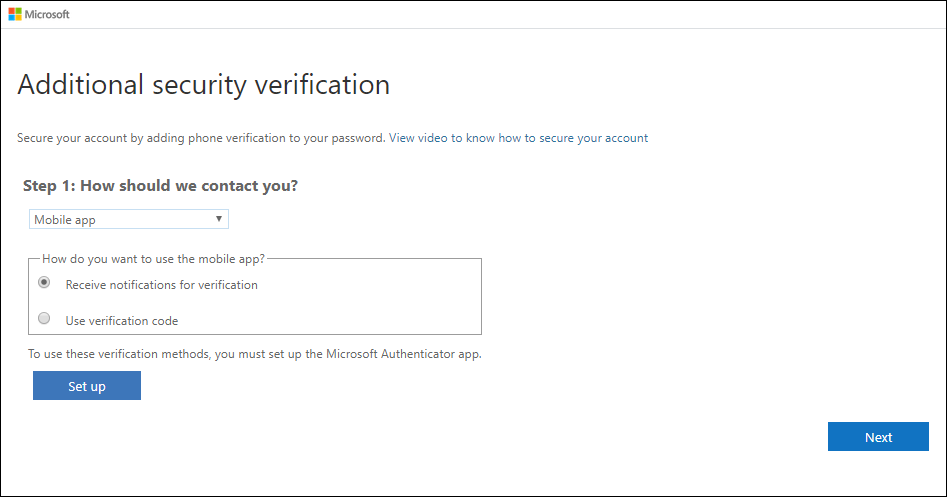
- Select setup and you will be prompted with a qr code:
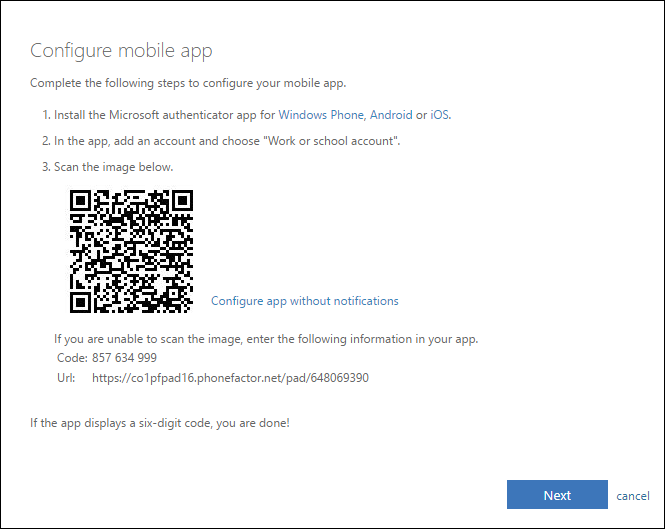
- On your phone, open the Microsoft Authenticator app that was downloaded in the beginning, select "add account" and then select "work and school account"
- You will be asked if you would like to use a qr code or sign in. Please click qr code and scan the qr code that is currently on your screen.
- Once this is done, you will move to the next screen which will ask you to enter a number. Enter the number you see displayed on computer screen on your phone:
- Once this is done, you should be set. This is what you will use to sign into Microsoft Account from now on.
If you have any issues, please call 312-432-5145
Comments
0 comments
Please sign in to leave a comment.